

Internal chat for the web, Slack and Microsoft Teams

Ask a question.
Get an answer from
your own documents.

Knowledge Assistant syncs documents from shared folders. Choose which sources each team can use. Every answer shows the document and page it came from.

0
supported file formats
Daily at6:00
automatic sync
Every answercites
its source

Supported sources

PDFWordExcelPowerPointText / MarkdownShared foldersSharePoint

What you can do with Knowledge Assistant

Sources for this answer
Staff handbook, ch. 4.pdf · p. 12
Parental leave guide.docx · §3.1
HR FAQ 2026.xlsx · row 48
Original · Staff handbook, p. 12

Employees may take parental leave until their child turns one, for the period they request.

01Read the source behind an answer

Each answer lists the document and page. Open the citation to check the original wording.

Folder syncLast sync today at 6:00
Admin / PoliciesSyncing
HR / GuidesSyncing
IT / ManualsSyncing
Sales / ProposalsSyncing

02Keep shared folders in sync

Selected folders sync every morning. Review any documents that could not be imported.

Choose a topic
HR questionsSources: Policies, leave, payroll
IT helpSources: PCs, accounts, VPN
Finance questionsSources: Expenses, invoices

03Choose sources and rules for each topic

Create topics for teams such as HR and IT, then choose which documents and answer rules each topic uses.

Users and groups
HR · 18 peopleAll topics
IT · 12 peopleAll topics
Sales · 64 people2 topics
All staff · 412 people3 topics

04Manage access by department and role

Assign topics to departments or groups. Only authorized users can consult confidential documents.

Connect Slack, Microsoft Teams and Google Meet

Ask questions in the chat your team already uses.

Mention the bot in a channel or send it a direct message. Channel answers appear in the thread.

  • Choose a topic for each channel
  • Ask follow-up questions in the thread
  • Open source links from the answer
# admin-helpThread reply
Y

Yamada10:24

@Knowledge Assistant Are travel expense claims changing next month?

For employees and the teams they turn to

Employees find answers themselves. The teams responsible can see unanswered questions and improve their documentation.

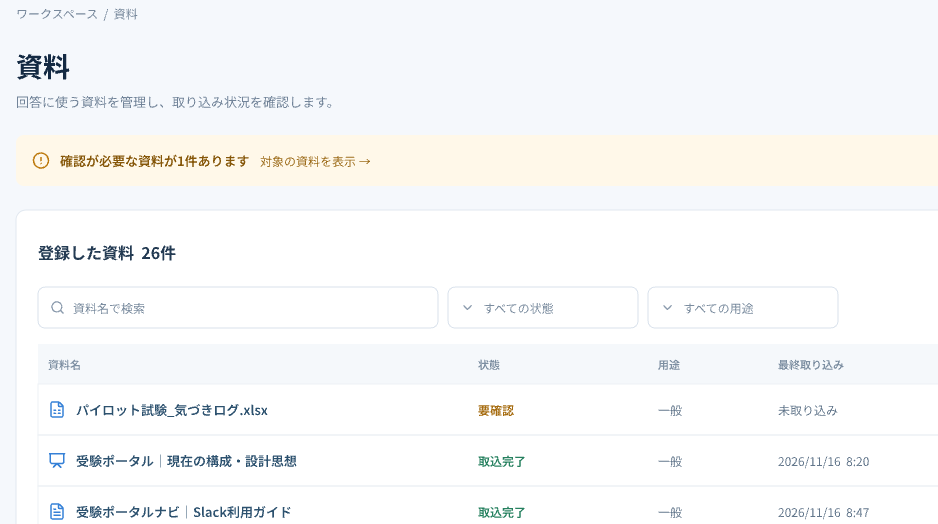
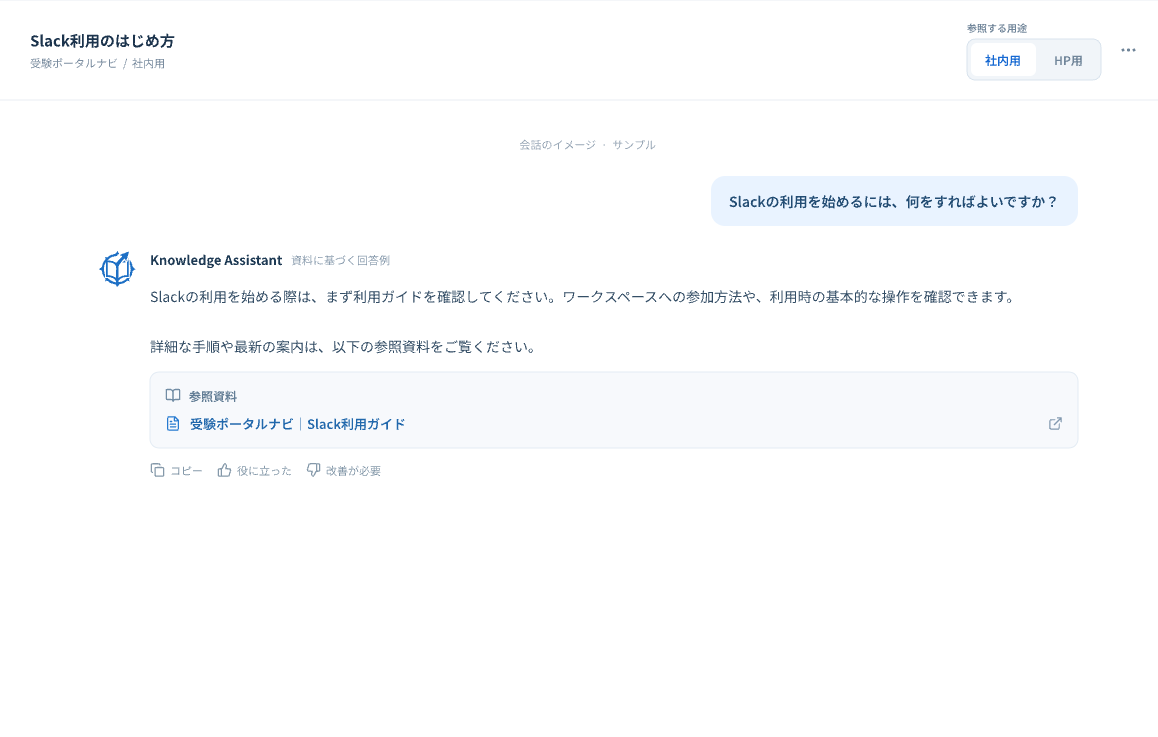
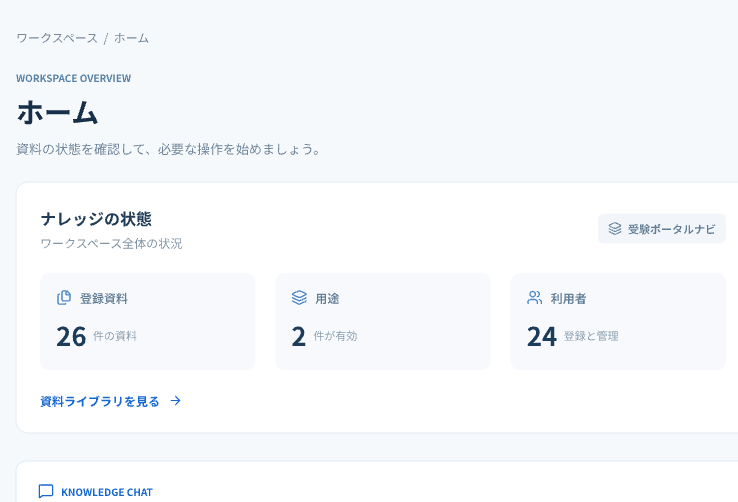
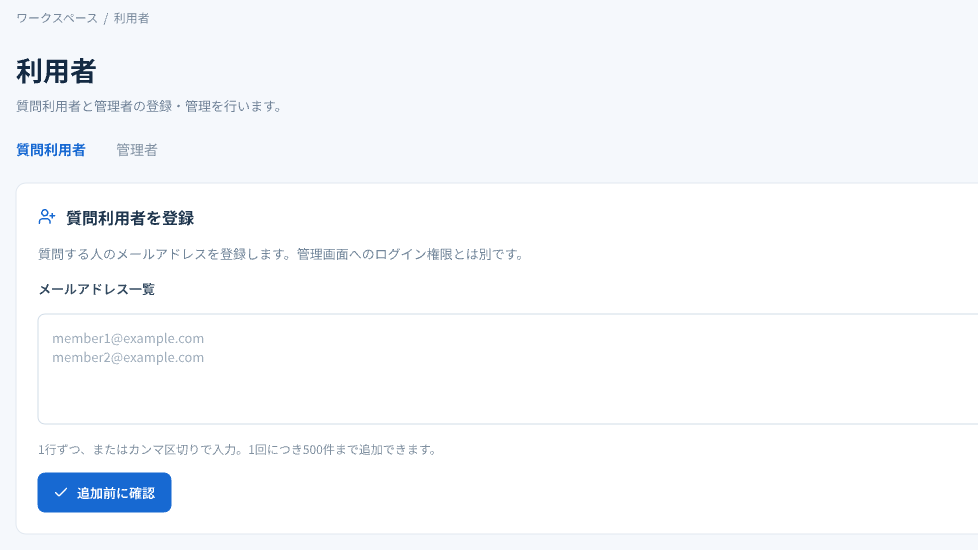
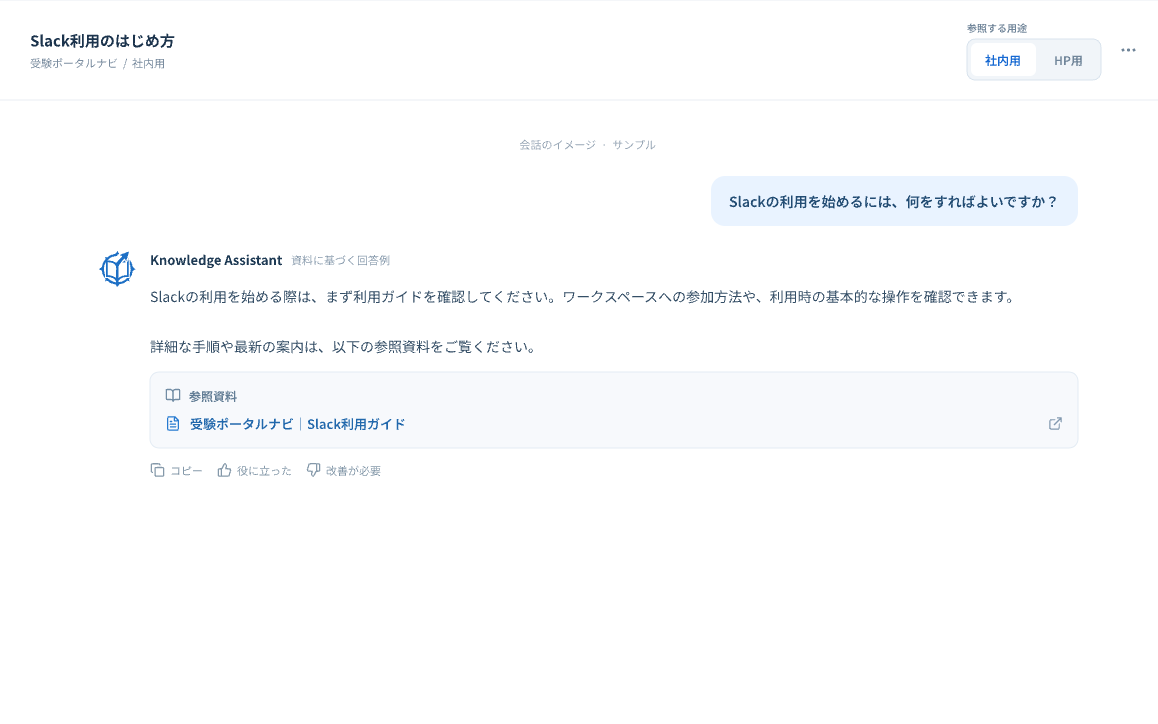
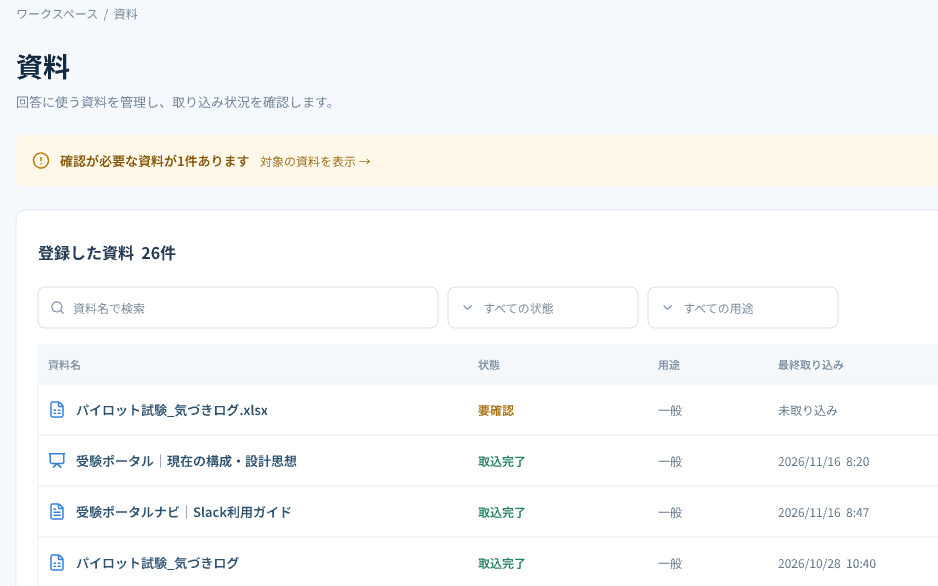
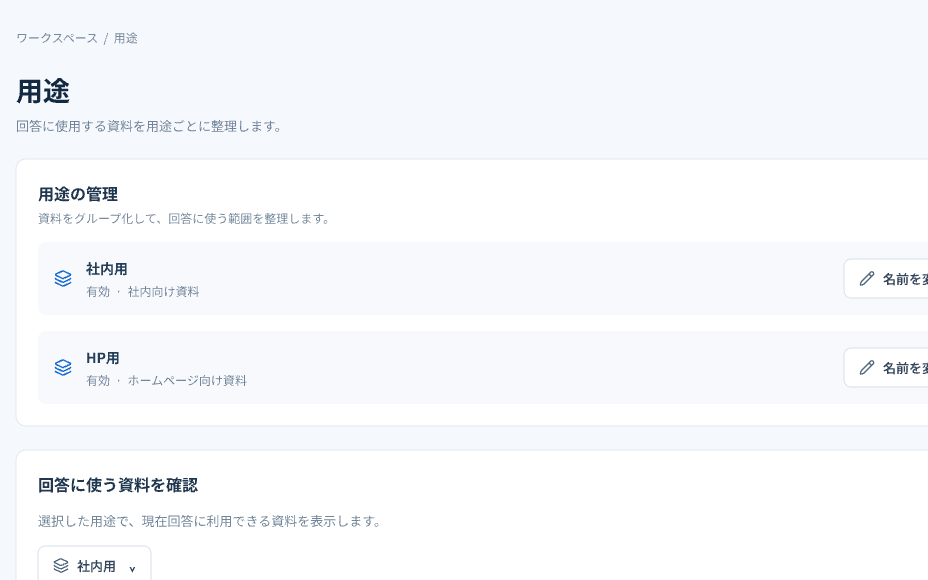
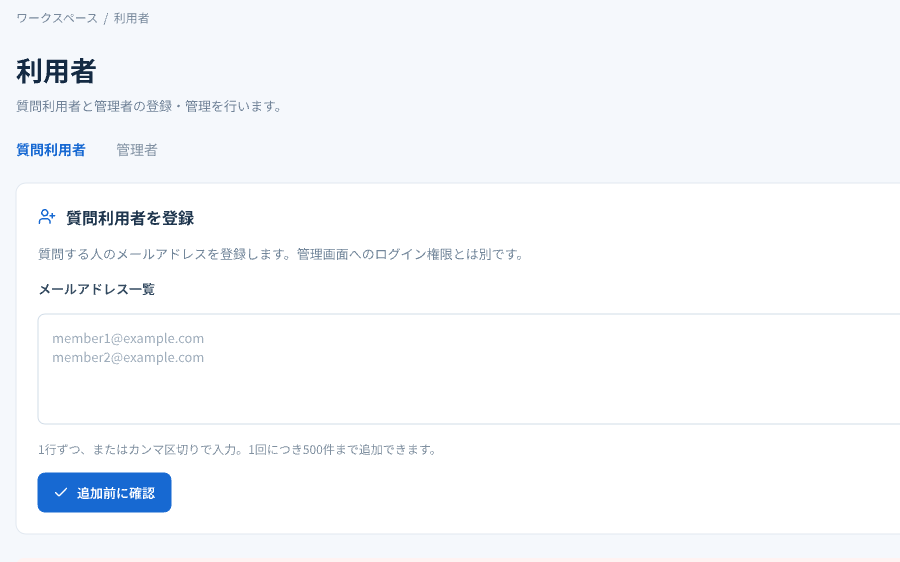
Colleagues gathered around a laptopDocument library screenChat answer screenUsage dashboardUser management screen

Employees ask questions

Ask in Slack or Teams and open the cited passage to check the original wording.

Teams maintain the documents

Review unanswered questions and feedback to see what needs to be added or updated.

How answers stay grounded in your documents

  1. 01

    Use internal documents only

    Answers draw only on imported documents. The assistant does not fill gaps with guesses or information from the web.

    From question to answer

    Employees ask questions
    Search the relevant documents
    Find the passage
    Find the passage
    Draft an answer from the text
    Answer with citations
    No source found
    Refer to the right team
    Contact the responsible team
  2. 02

    Show the source every time

    Every answer identifies the document and page it draws on. Open the original to check it yourself.

    Answer

    Remote workers can claim up to ¥3,000 per month for connectivity.

    Remote work policy.pdf · p. 4
    Original · Remote work policy, p. 4

    Article 8. Actual connectivity costs are reimbursed up to ¥3,000 per month.

  3. 03

    Pick up document updates automatically

    Folder sync picks up revised policies and guides by the next morning. Superseded versions are excluded from answers.

    Travel policy, April 2025.pdfExcluded
    Travel policy, April 2026.pdfIn use

Features

Import documents, answer questions, review usage and manage access from one place.

01Chat

Get answers with citations

Questions are answered using relevant passages from imported documents. Each answer includes the document name and page.

  • Cited answers
  • Source preview
  • Chat history
  • Feedback and reports

02Document imports

Search the files in your shared folders

Selected folders sync every morning. New and updated files are imported automatically, and older versions are excluded.

  • Folder sync
  • Manual upload
  • Import error alerts
  • Version control

03Topic settings

Tailor answers to each team

Choose sources and answer rules for each topic. Add frequent questions as suggested prompts.

  • Source folders
  • Answer rules
  • Suggested questions

04Integrations

Ask in the chat you already use

Add the bot to Slack or Microsoft Teams. Import Google Meet transcripts as meeting minutes.

  • Slack
  • Microsoft Teams
  • Google Meet
  • SharePoint

05User management

Set access by department and role

Register users by department or group and assign their topics. Only authorized users can consult confidential material.

  • Departments and groups
  • Invitations and bulk enrollment
  • Document permissions

06Analytics

Find gaps in your documentation

Track usage, review unanswered questions and see which answers received low ratings.

  • Question and user counts
  • Unanswered questions
  • Low-rated answers
  • CSV export

07Security

Keep internal documents private

Data is encrypted in transit and at rest. Questions and documents are not used to train AI models. Activity is logged.

  • Single sign-on
  • IP restrictions
  • Activity logs
  • No model training

How teams use it

Sato · HRExample user

HR and administration

Questions about policies and procedures

How much family leave can I take?Where do I report a change of address?

Fewer repeat questions give HR more time for individual cases.

Tanaka · ITExample user

IT support

Questions about computers, accounts and networks

What should I do if the VPN won’t connect?How do I request new software?

Employees can find instructions after hours without waiting for IT to send a manual.

Suzuki · SalesExample user

Sales

Find proposals, product sheets and case studies

Do we have a case study from manufacturing?Where is the latest price list?

Finding the right document quickly leaves more time to prepare proposals.

From first inquiry to rollout

  1. STEP 1Estimate: Same day to 2 days

    Talk to us

    Tell us about your workflow and the documents you want to use. A team member will get back to you.

  2. STEP 2Estimate: 1 day

    Request access

    Use the form to tell us your department, team size and intended use. You can apply without creating an account.

  3. STEP 3Estimate: 1 week

    Import and check your documents

    IT imports the documents. Together, we check answers and citations against common questions.

  4. STEP 4Estimate: Same day

    Start using the assistant

    Share the chat URL or introduce the Slack or Teams bot to your department. Your team can start asking questions right away.

FAQ

A

No. Your questions and imported documents are used only to generate answers for your organization.

Contact us or
request access

Ask about rollout, discuss the documents you want to use or request access for your team.

  • Plan your rollout
  • Discuss your document sources
  • Talk about team size and use cases
How can we help?
Preparing verification…